 Sakvora
From sign-up to your first unit cost: create an account with an invitation code, set your rates, add a printer, and calculate the cost of one file. You don't need to connect a printer yet.
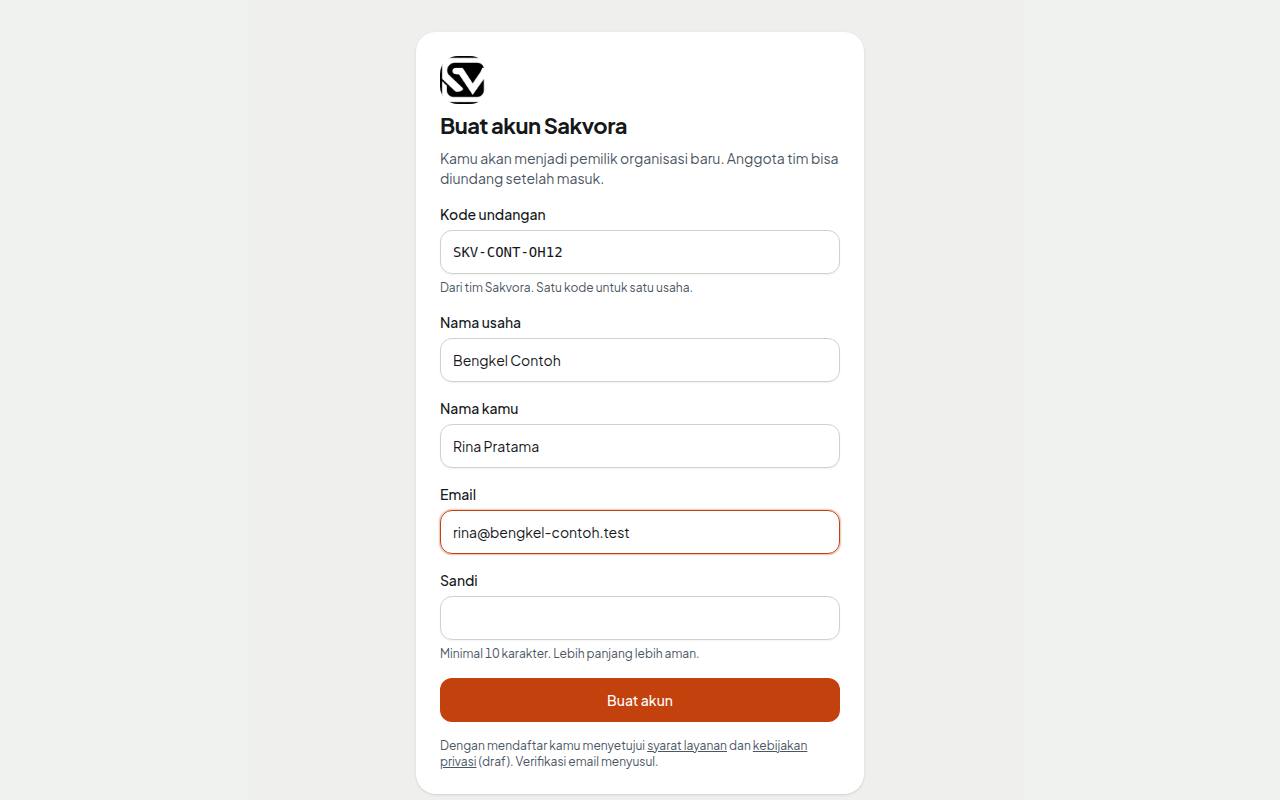
1. Sign up with an invitation code
During the trial, accounts are created with an invitation code from the Sakvora team (format SKV-XXXX-XXXX). Don't have one? Fill in the trial form on the Sakvora page and we'll get back to you by email or WhatsApp.
- Open Sign up.
- Enter the invitation code, business name, your name, email, and a password (at least 10 characters).
- Click Create account. You are signed in straight away as the owner of a new organisation.
One code per business. Team members don't need a code: once you're signed in, invite them from Members (in the app, Settings).
2. Set your rates (2 minutes)
Open Rates (in the app, Settings):
- Select your PLN tariff class to fill in the rate per kWh automatically.
- Enter printer power (watts) and machine cost per hour: the printer's purchase price divided by its expected lifetime, for example Rp5,500,000 ÷ 3,000 hours ≈ Rp1,833 per hour.
- Enter the filament price per kg under Filament (in the app, Production).
Missing inputs don't stop the calculation; results are marked incomplete so you know which figures are still estimates.
3. Add a printer (2 minutes)
On Printers, click Add printer:
- Other / manual printer for any brand (Creality, Anycubic, Prusa, Elegoo, or a Bambu Lab you'd rather not connect). Just enter its name, brand, model, power, purchase price, and expected lifetime.
- Bambu Lab (connected) if you want live status, the camera, and sending prints directly. The steps are in Connect a Bambu printer (LAN mode). You can do this later.
4. Calculate your first unit cost (3 minutes)
- Open Cost calculator (in the app, Business) and upload a sliced file (
.gcode.3mfor.gcode). Raw.stl/.3mffiles work too: Sakvora slices them on the server. - Select the printer you just added and enter how many items are on the plate.
- Read the unit cost and its breakdown: filament, electricity, and machine.
- Enter a selling price and channel (for example Shopee) to see your profit, then click Save as product.
Done. The Getting started card on Printers ticks off the steps you've completed.
Want to explore with sample data first?
An empty organisation can click Load sample data on the Getting started card. Sample printers, files, products, jobs, and orders are added so you can try every page. Delete them from Admin before entering your own data. Details in Try sample data.
Continue to Start using Sakvora.