 Sakvora
Sakvora helps 3D print workshops know the unit cost of every item, record production, and calculate profit per order. This page covers the first five steps and how to try Sakvora with sample data.
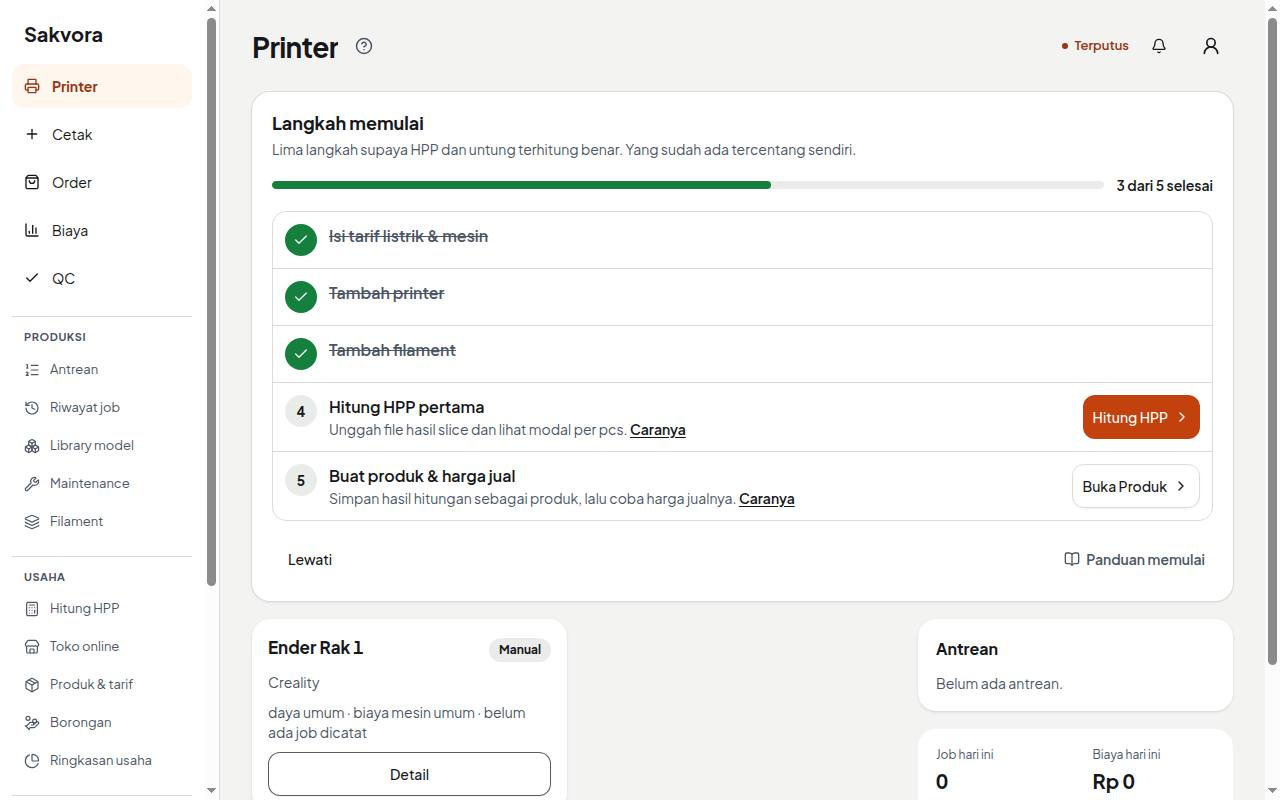
Your first five steps
While an organisation is empty, the Printers page shows a Getting started card. Each step has a button to the right page and is ticked off automatically as soon as its data exists, without reloading.
- Set electricity and machine rates under Rates (in the app, Settings).
- Add a printer: a manual printer of any brand, or connect a Bambu Lab printer.
- Add filament (types and prices) or spools under Filament (in the app, Production).
- Calculate your first unit cost in Cost calculator (in the app, Business).
- Create a product and try out selling prices under Products & pricing (in the app, Business).
The organisation owner can click Skip or Hide to close the card for all members. It can be shown again from Admin.
Set electricity and machine rates
Open Rates (in the app, Settings). Select a PLN tariff class to fill in the rate per kWh, then enter printer power (watts) and machine cost per hour. Machine cost is the share of the printer's price "used up" per print hour: purchase price divided by expected lifetime. Example: a Rp5,500,000 printer with a 3,000-hour lifetime is about Rp1,833 per hour.
If your printers differ, set values on each printer or printer category. The values in Rates apply to printers without their own.
Add filament and spools
Under Filament (in the app, Production), the Types tab holds brand, material, color, and price per kg; this price is used to calculate the filament cost of each print. The Spools tab lists the spools you own; remaining grams go down as each job finishes. Bambu RFID spools register themselves when loaded into the AMS.
Try sample data
Not ready to enter your own data? The owner of an empty organisation can click Load sample data on the Getting started card. It creates a small fictional workshop: 2 manual printers, 4 files, 3 products, 6 jobs (2 failed), and 2 orders. All figures are examples; no real payments or messages are involved.
When you're done exploring, open Admin and click Delete sample data. Everything created since the sample data was loaded is deleted too, so don't start entering real data until you've removed it.
Invite your team
In Members (in the app, Settings), an owner or admin clicks Invite member, enters an email, and picks a role: admin, operator, technician, or viewer (view only). Invitation links are valid for 7 days and work once. If email isn't set up yet, copy the link and send it via WhatsApp.
Find a page
On a laptop, every page is in the left sidebar, grouped under Production, Business, and Settings. On a phone, the five main pages are in the bottom bar; the rest are under All pages (grid icon) at the top right. The ? next to a page title opens the guide section for that page.
Continue to Cost calculator.