 Sakvora
Once you know your unit cost, the next step is recording customer orders so the profit on each order is clear, including marketplace fees and overhead.
Products and variants
Under Products & pricing (in the app, Business), a product (for example a cigarette case) can have several variants (Regular Black, Slim White). Each variant is made of printed components; for each component, save a design revision with its source and sliced files. The quickest start: calculate in Cost calculator (in the app, Business), then click save as product.
The product page has a profit/loss estimate per set: enter a selling price, choose a channel, and see the result.
Item rates and sales channels
Under Rates (in the app, Settings), enter per-item costs: piece rate (pay per item), finishing (sanding, cleanup), and packaging. Also add sales channels with their fees (for example Shopee at 10%) and monthly overhead. Without these, Sakvora marks results as incomplete.
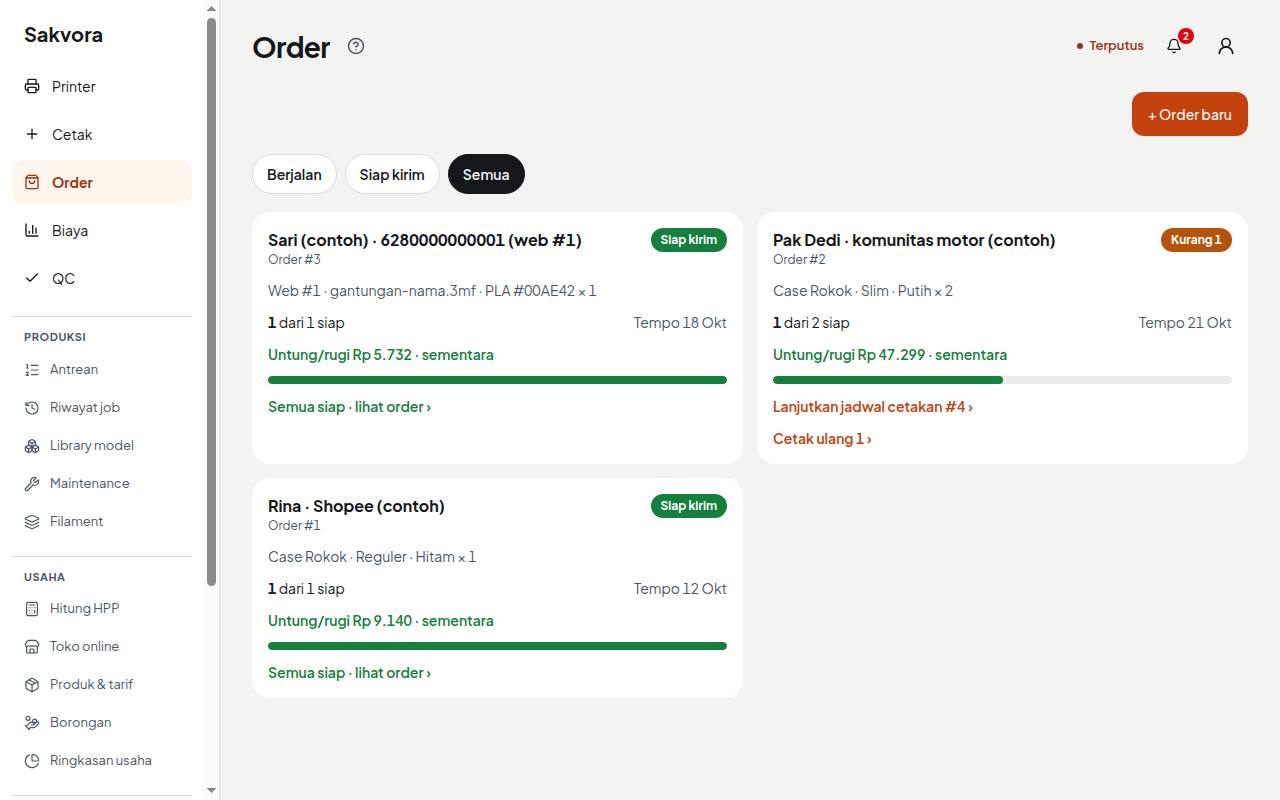
Record an order
In Orders (in the app, main menu), click + New order. Enter the customer name, due date, variants and quantities, unit selling price, and channel. The order then shows the next step each time: plan prints, send to printer or log a job, check results in QC, until it is ready to ship.
Order profit is the selling price minus production cost, overhead, channel fees, discounts, and shipping subsidies. It stays provisional until the month is closed, because overhead is spread across all items that pass QC that month.
Costs and business overview
Costs (in the app, main menu) summarises print costs by day, printer, and model. Business overview (in the app, Business) shows revenue, production cost, and profit for the current month across all orders.
Continue to Piece-rate work and QC.