 Sakvora
The online shop and self-service printing are not part of the SaaS edition. A print service is available as Sakvora's own service at cetak.sakvora.id; self-service printing is still planned. This guide applies only to organisations whose shop features have been enabled by a platform admin.
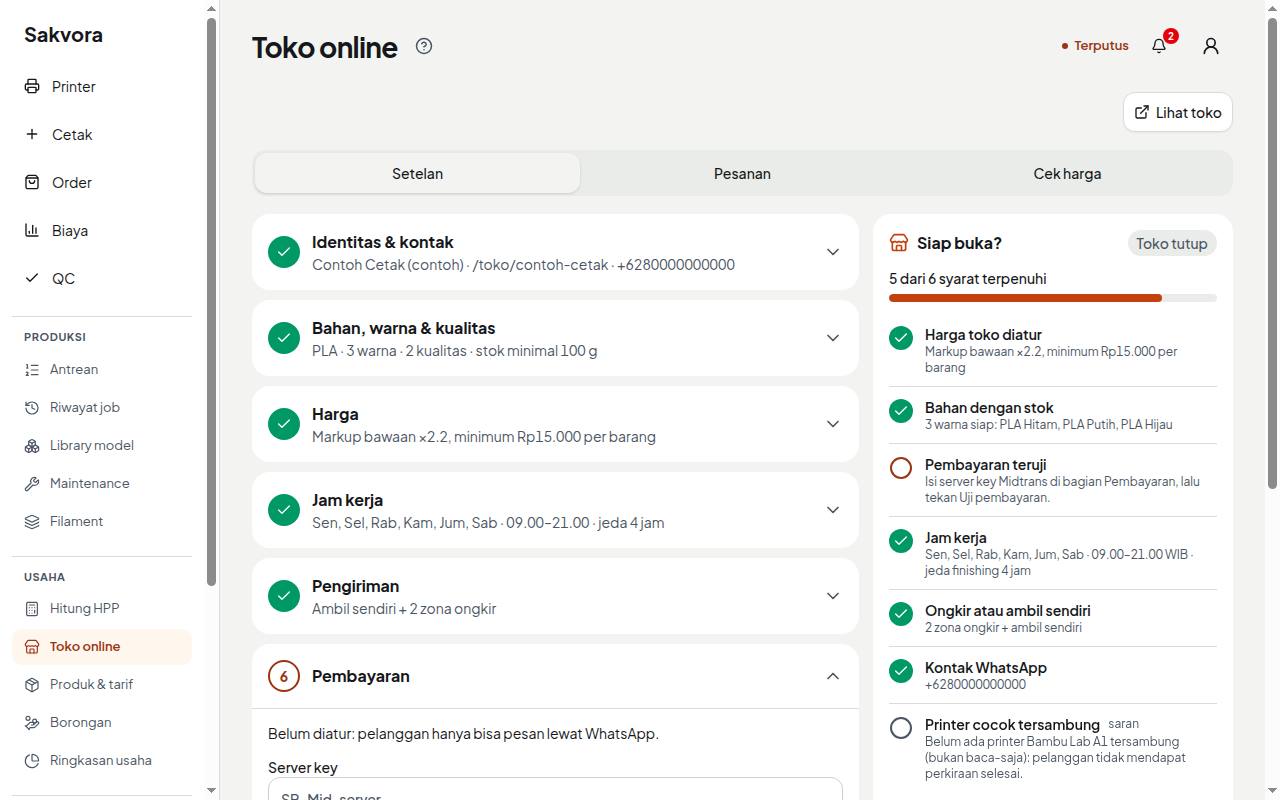
Set up the shop
Open Online shop (in the app, Business). Settings come in six sections: Identity & contact (shop name, link address, WhatsApp), the Material, color & quality options you sell, Pricing (markup per material, minimum price, rounding, quantity discounts, finishing), Working hours, Shipping (rates per zone and collection), and Payment (Midtrans server key).
The Ready to open? card beside it shows what is still missing; a matching connected printer is only a recommendation, for more accurate ready dates. Open shop becomes available once all requirements are met, including a Rp10,000 payment test that does not become an order. Once open, share the link or QR code.
Customer quotes
Customers open the shop link without signing up, upload an .stl or .3mf file, and choose material, color, quality, and quantity. The server actually slices the file, then shows a price and estimated ready date based on the current queue. Quotes are valid for 24 hours. A color is shown only when there is enough spool stock (at least 100 g).
Checkout and payment
Customers enter their name, WhatsApp number, and delivery method, then pay through Midtrans (QRIS, bank transfer, and more). After payment, Sakvora creates the model, the product, and an order in the Web channel. Orders are not printed automatically; you add them to the queue yourself.
Order status
Customers get a status link that updates itself: Paid → Queued → Printing → QC, then Shipped (once you enter the tracking number on the order card) or Ready for collection, and finally Done (automatically 7 days after shipping). If email is set up, customers get an email at each stage. From the order page you can copy a WhatsApp message containing the status link.
Receipt
The status page has a Receipt that can be saved as a PDF (A4 or 58 mm receipt-printer size). A receipt is not a tax invoice.
Cancellation
Paid orders can be cancelled only before printing, by an owner or admin, using Cancel & record refund on the order. Refund the money through the Midtrans dashboard first, then enter the refund amount and reference when cancelling. Queue entries not yet taken by a printer, and the internal order, are cancelled too.
Continue to Free cost calculator.